 Lipo
LipoHow to use dictation on Mac: setup, shortcut, commands and languages
Apple's dictation is free, built in, and takes about a minute to switch on. Here is how to set it up, what to say for punctuation, and where it stops being enough.
To use dictation on a Mac, open the Apple menu, choose System Settings, click Keyboard, and turn on Dictation. Then click into any text box, press your dictation shortcut, and speak. Your Mac writes the words as you talk. The whole setup takes about a minute, and the feature is free with macOS. Apple calls it dictation; you will also see it called voice dictation or voice typing, and this guide uses all three.
This guide covers the setup, the shortcut, the spoken commands for punctuation, and how to add a language. It also covers the parts Apple explains poorly. Which languages are missing from the list, and what to do if yours is one of them.
How do you turn on dictation on a Mac?
Dictation is off until you switch it on. Here are the steps.
- Open the Apple menu in the top left corner and choose System Settings.
- Click Keyboard in the sidebar.
- Find Dictation and turn the switch on.
- If macOS asks you to confirm, click Enable Dictation.
- Click into any text box. Mail, Notes, Messages, a browser, a document. Anywhere you can put your cursor (the blinking line that shows where text will go).
- Press your dictation shortcut and start speaking.
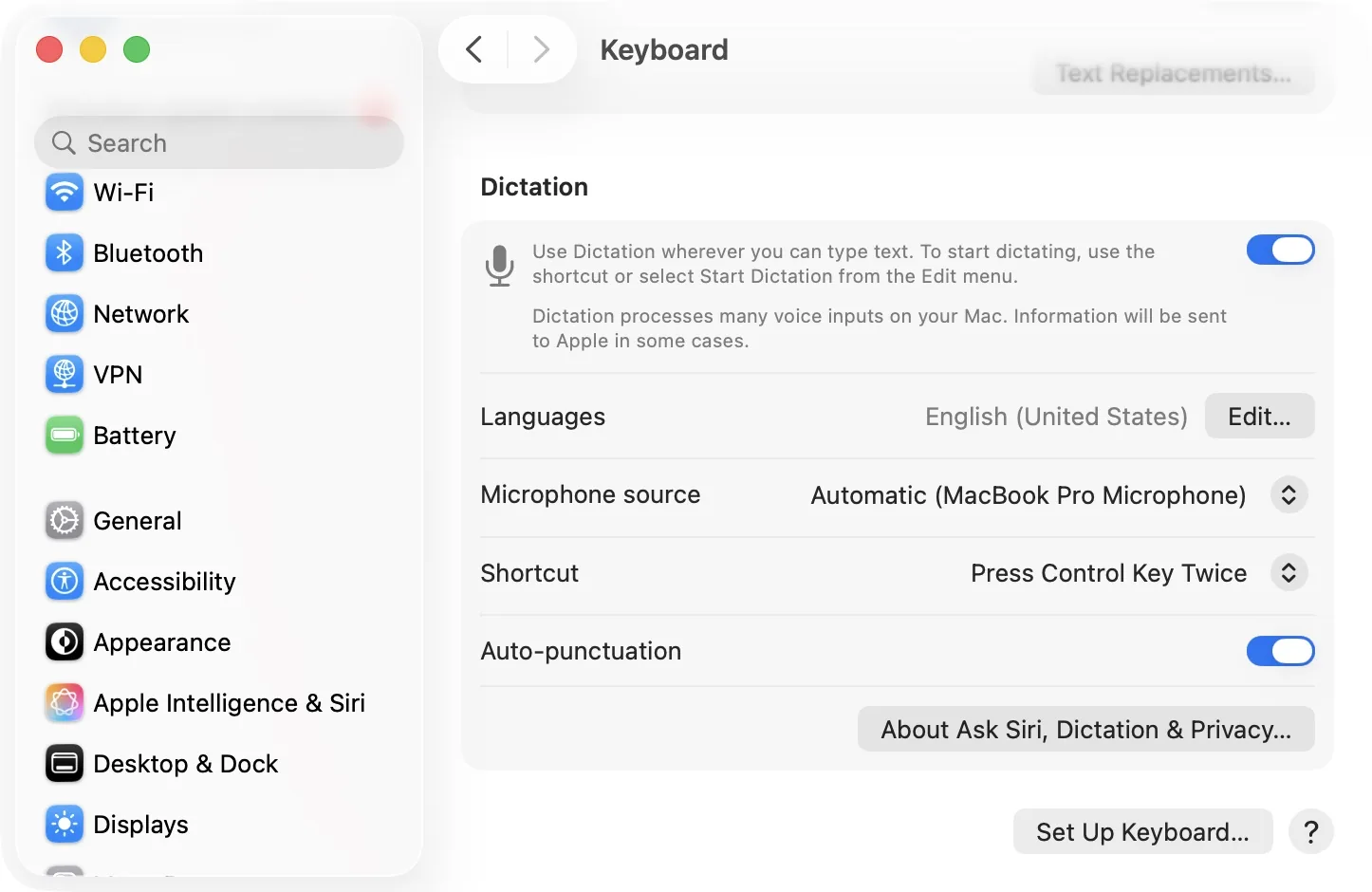
A small microphone icon appears while your Mac is listening. Press the shortcut again to stop, or stop talking. Dictation ends by itself after about 30 seconds of silence.
What is the keyboard shortcut for dictation on Mac?
If your keyboard has a microphone key, that key starts dictation. It is usually F5 on Apple keyboards.
If your keyboard does not have one, you choose a shortcut yourself. Open System Settings, click Keyboard, then look at the Shortcut menu in the Dictation section. The options include pressing the Control key twice and pressing the Function (fn) key twice. Pick one you will not press by accident.
You can also set it to Off in that menu, which stops dictation starting while you type.
Does Mac dictation add punctuation by itself?
In some languages, yes. In many others, no, and Apple publishes the list.
Automatic punctuation means your Mac adds commas, periods and question marks while you speak, without you saying them. Apple lists it for English, Spanish, French, German, Italian, Dutch, Japanese, Korean, Thai, Cantonese and Mandarin Chinese.
It is not on the list for Arabic, Hindi, Portuguese, Russian, Polish, Turkish, Ukrainian, Vietnamese, Greek, Czech, Hebrew, Croatian, Danish, Finnish, Hungarian, Indonesian, Malay, Norwegian, Romanian, Slovak, Swedish or Catalan. In those languages you say every mark out loud.
Even inside English it is not every version. Apple lists automatic punctuation for English in the United States, the United Kingdom, Australia, Canada, India, Indonesia, Malaysia, the Philippines, Saudi Arabia, Singapore and the United Arab Emirates. English for Ireland, New Zealand, South Africa and Japan is on the dictation list but not on the punctuation list.
You can switch the feature off. The setting sits next to the Dictation switch in Keyboard settings.
For every other mark you say its name. You say "Please send me the report comma I need it today period" and your Mac writes "Please send me the report, I need it today." Here are the commands people use most.
| You say | Your Mac writes |
|---|---|
| period | . |
| comma | , |
| question mark | ? |
| exclamation mark | ! |
| colon | : |
| semicolon | ; |
| hyphen | - |
| apostrophe | ' |
| open quotes / close quotes | " " |
| new line | starts a new line |
| new paragraph | starts a new paragraph |
| caps on / caps off | Starts Each Word With A Capital |
| all caps | writes the next word in capital letters |
Apple's support page lists more, including brackets, braces and Roman numerals.
How do you change the dictation language on Mac?
Apple's dictation listens in one language at a time. You choose which one.
- Open System Settings, then Keyboard.
- In the Dictation section, click Edit next to Languages.
- Tick the languages you want and choose a region. Spanish, for example, comes in five: Spain, Mexico, Colombia, Chile and the United States.
- Click OK.
If you add more than one language, you can switch between them without going back into settings. Press the Globe key while dictation is running, or click the language name shown next to your cursor, and pick the other one.
What you cannot do is mix two languages in one sentence. Dictation writes in the language that is selected at the time. If you speak Spanish while French is selected, your Mac writes French words that sound similar to what you said.
Which languages does Mac dictation support?
About 34. Apple publishes them as 59 language-and-region combinations, because most languages come in more than one regional version, so the list looks longer than it is.
Arabic, Cantonese, Catalan, Croatian, Czech, Danish, Dutch, English, Finnish, French, German, Greek, Hebrew, Hindi, Hungarian, Indonesian, Italian, Japanese, Korean, Malay, Mandarin Chinese, Norwegian Bokmal, Polish, Portuguese, Romanian, Russian, Shanghainese, Slovak, Spanish, Swedish, Thai, Turkish, Ukrainian and Vietnamese.
Chinese counts as three separate choices here: Cantonese, Mandarin and Shanghainese. English has fifteen regional versions, including India, Singapore, South Africa, the Philippines and the United Arab Emirates. Arabic has two, Saudi Arabia and the United Arab Emirates, with no Egyptian option.
Check the list on your own Mac as well, because Apple adds languages in new macOS releases.
Does Mac dictation work offline?
For many languages, yes, but not all of them, and Apple is specific about which.
Apple publishes a second, shorter list for on-device dictation. If your language is on it, your Mac does the transcribing itself, although Apple's settings note that some information is still sent to Apple in some cases. It downloads a speech model for the language first, so the first use needs a connection even when later ones do not.
Twelve languages are on the dictation list but not on the on-device list: Catalan, Croatian, Czech, Greek, Hindi, Hungarian, Indonesian, Polish, Romanian, Slovak, Ukrainian and Shanghainese. Portuguese for Portugal and Mandarin for Taiwan are missing too, while Portuguese for Brazil and Mandarin for China mainland are there. Dictation in any of those needs a connection every time.
Hindi is the one to notice, because it is by far the most spoken language in that group. Hindi dictation on a Mac is not on-device.
Keyboard settings tells you which applies to the language you picked.
There is no limit on how long you can dictate. Older versions of macOS stopped after about a minute. That limit is gone.
Why does Mac dictation get words wrong or stop working?
Four things cause most problems.
The wrong language is selected. Your Mac writes in the language that is chosen, not the language you spoke. Check the language before you start.
The microphone is poor. Wireless earbuds compress audio to save power, and quiet consonants get lost. The microphone built into your Mac usually gives better results.
The word is a name. Apple's dictation draws on the names in your Contacts to recognize the ones you say, so a colleague who is not in Contacts is more likely to come out spelled the way it sounds. You cannot add your own spellings to Apple's dictation.
Dictation is switched off or the shortcut is taken. Another app may already use the same key combination. Change the shortcut in Keyboard settings and try again.
The guide to fixing Mac dictation when it is not working goes through each problem in more detail.
What are the limitations of Mac dictation?
Apple's dictation does one job well: turning clear speech into words, in a language on its list, one language at a time. For a short note in English it is often enough, and it costs nothing.
Four limits send people looking for something else.
Your language may not be on the list. Twenty-eight of the languages Lipo supports are missing from Apple's. More on that below.
It writes what you said, not what you meant. If you restart a sentence, change your mind, or say "um", all of it appears in the text. You then delete it by hand. Apple's dictation adds punctuation in some languages, but in none of them does it remove filler words or repair a sentence you began twice.
It cannot switch language inside a sentence. People who speak two languages often mix them. "Kal client ke saath meeting hai" is one sentence with two languages in it, and Apple's dictation has to pick one. We wrote about that in voice typing in mixed languages.
It cannot translate. You can dictate in Spanish and get Spanish. You cannot dictate in Spanish and get English. Apple's dictation has no translation feature at all.
Which languages does Lipo support that Mac dictation does not?
Lipo is our app. It supports 50+ languages, and 28 of them are not in Apple's dictation list at all:
Afrikaans, Albanian, Azerbaijani, Basque, Belarusian, Bengali (Bangla), Bosnian, Bulgarian, Estonian, Galician, Gujarati, Kannada, Kazakh, Latvian, Lithuanian, Macedonian, Malayalam, Marathi, Persian, Punjabi, Serbian, Slovenian, Swahili, Tagalog, Tamil, Telugu, Urdu and Welsh.
That list includes some of the most widely spoken languages in the world. Bengali has more than 230 million speakers. Urdu, Tamil, Telugu, Marathi, Punjabi and Persian each have tens of millions. If you speak one of these, no setting in macOS will help you. The language is simply not there. We compared the apps that do support them in the best dictation apps for South Asian languages.
It runs the other way too. Apple's dictation supports Hebrew, Cantonese and Shanghainese, and Lipo does not.
How is Lipo different from Mac dictation?
Lipo works like this. You hold a key, called a hotkey, and speak. The default is the right Option key. When you release the key, Lipo transcribes your speech, which means it turns it into text. It then cleans the text up: it removes filler words and false starts, adds punctuation, and fixes small mistakes. Then it pastes the finished text where your cursor is. Lipo does not type letter by letter, and no text appears while you are speaking.
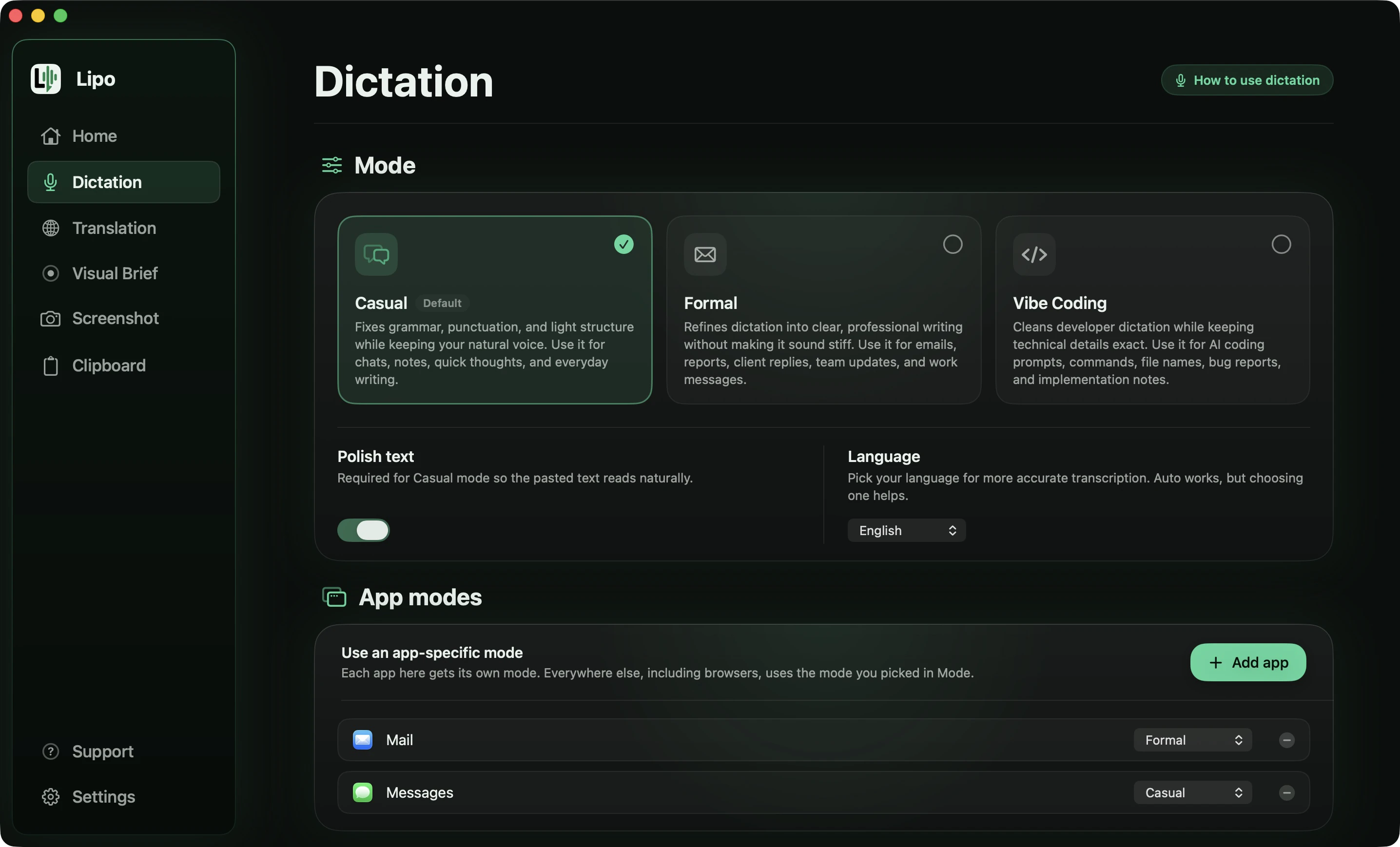
It has three modes. Casual keeps your wording as it is. Formal makes it professional. Vibe Coding is for writing prompts and code. Here is Formal mode on a messy handover note.
You say
"okay so um I'm off from Thursday, no sorry from Wednesday, and I need to hand over the, the two things I'm on. first the client report, that's nearly done, I just need their logo, second the invoices for March, those haven't been started at all. oh and the file is called handover dot p d f, it's in the shared drive. can you take a look before I go?"
Lipo pastes, in Formal mode
I am away from Wednesday, and I need to hand over the two things I am working on.
1. The client report, which is nearly done. I only need their logo.
2. The invoices for March, which have not been started.
The file is called handover.pdf and it is in the shared drive. Could you take a look before I go?
Six changes there, and each one is a rule rather than a guess:
- The filler went. "okay so um" and "oh and" are gone, and "the, the" became "the".
- The correction was resolved. You said Thursday, stopped yourself, and said Wednesday. Only Wednesday survives.
- "first" and "second" became a numbered list, and the words themselves were dropped. Formal mode does this when you count items out loud.
- The spoken file name became a real one. "handover dot p d f" is written handover.pdf, with the name kept exactly as you said it.
- The contractions were expanded. "I'm" became "I am". Formal mode does this; Casual mode leaves them alone.
- Nothing was invented. There is no "Hi Sarah" and no "Best regards", because you did not say either. Lipo will polish a greeting you speak, and it will never add one you did not.
The numbered list is plain text, not formatting. The "1." and "2." are real characters, which is why the list still looks like a list when you paste it into Slack, WhatsApp or an email.
Can you dictate in one language and type in another?
Yes, and this is the part Apple's dictation has no answer to.
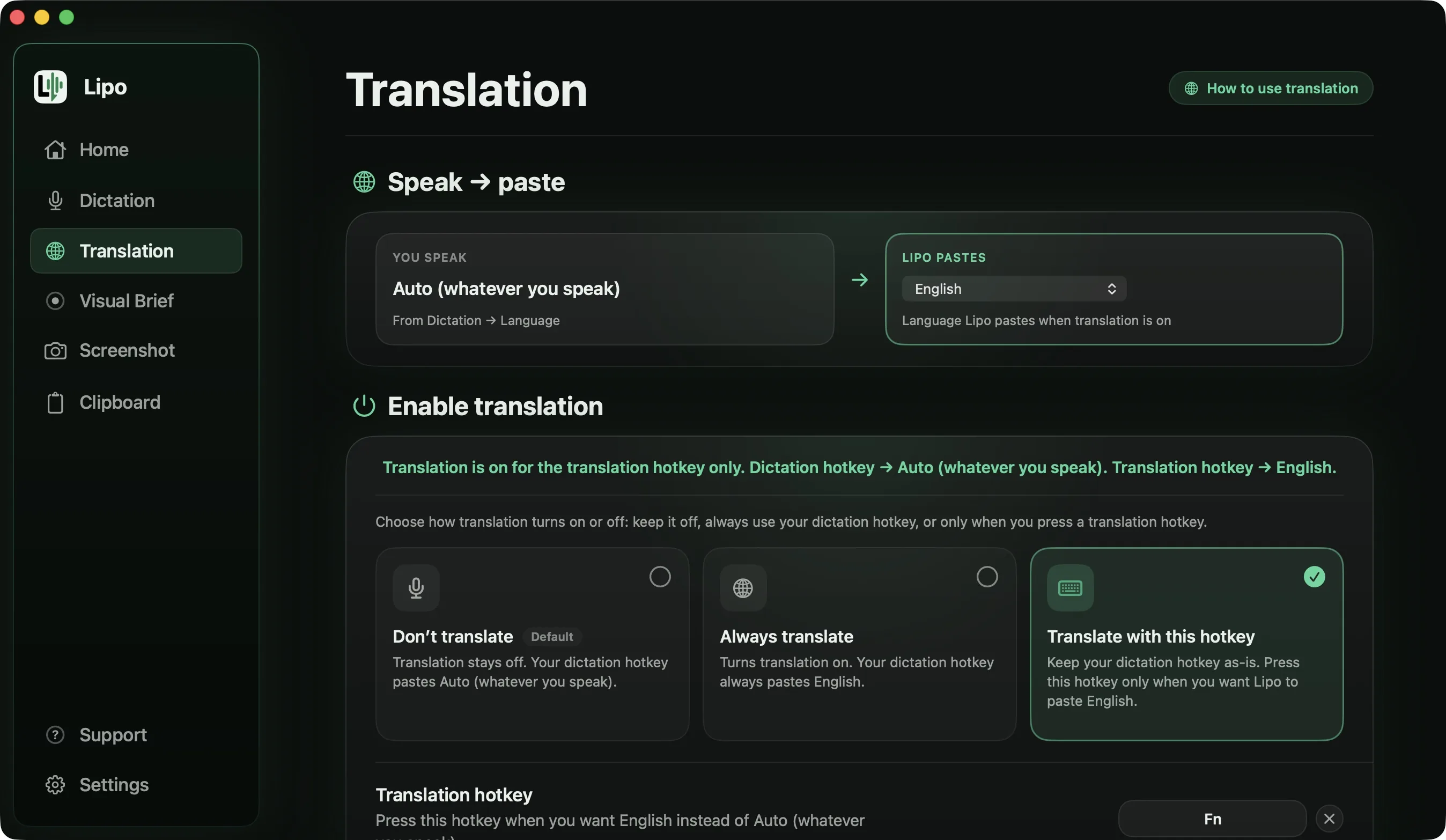
In the Translation tab you choose the language Lipo pastes. You can speak Bangla and paste English, or speak English and paste Spanish, in any pair of its languages. Lipo cleans the sentence first and then translates the cleaned meaning, so the result reads like a sentence you wrote rather than a machine translation.
You say, in Bangla, Formal mode
"ডিজাইনটা... মানে হোমপেজের ডিজাইনটা রেডি, মেইলে পাঠাইছি। একটু দেখে যদি বলতেন কোথায় চেঞ্জ লাগবে। শুক্রবারের মধ্যে ফিডব্যাক পেলে ভালো হয়, তাহলে পরের সপ্তাহ থেকে ডেভেলপমেন্ট শুরু করতে পারব।"
Lipo pastes, in English
The homepage design is ready and I have sent it to you by email. Could you take a look and tell me where changes are needed? If I receive your feedback by Friday, I can start development the following week.
You say, in Hindi, Formal mode
"हाँ तो, वो app का build... मतलब नया वाला, वो testing के लिए ready है, मैंने link भेज दिया है। आप बता दीजिए किन phones पे पहले test करना है। एक issue अभी भी है, login screen पे कभी कभी loader अटक जाता है, उस पे काम चल रहा है।"
Lipo pastes, in English
The new app build is ready for testing and I have sent you the link. Could you tell me which phones you would like tested first? One issue is still open: the loader sometimes gets stuck on the login screen, and we are working on it.
You say, in Arabic, Formal mode
"طيب، بخصوص التقرير، أنا... أنا آسف على التأخير، كان في مشكلة في البيانات. أقدر أرسله يوم الأربعاء، لا، الخميس أضمن. تحب أرسل لك النسخة الناقصة الحين ولا تنتظر الكاملة؟"
Lipo pastes, in English
I apologize for the delay with the report. There was a problem with the data. I can send it on Thursday to be safe. Would you prefer that I send you the partial version now, or wait for the complete one?
You say, in Spanish, Formal mode
"Oye, eh, quería preguntarte una cosa. El mes que viene vamos a necesitar más volumen, como el doble de lo de ahora. ¿Podéis cubrirlo? Y si podéis, ¿cuánto sería el plazo de entrega? Es que, o sea, necesito confirmarlo antes del viernes."
Lipo pastes, in English
I wanted to ask you something. Next month we will need roughly double our current volume. Can you cover that, and if so, what would the delivery time be? I need to confirm it before Friday.
The same three things happen in all four. The false start at the front is dropped. The words that were already English, design, build, testing, login, are understood as English instead of being guessed at from their sound. And the politeness survives: a request stays a request rather than becoming an instruction, which is what word-by-word translation usually does to it.
The self-corrections survive too. The Arabic speaker said Wednesday, stopped, and said Thursday; only Thursday reaches the English.
This matters for more than speed. When you write in a second language, you often say less than you mean, because your attention goes to the grammar. Speaking your own language and letting Lipo carry it into English keeps the meaning and the tone. The setup is in how to dictate in one language and type in another.
Can you attach a screenshot to dictated text?
Yes, in Lipo, and this has no equivalent in Apple's dictation.
While you are speaking, a small floating window appears. Lipo calls it the pill. It shows your current mode, a moving waveform so you can see that Lipo hears you, and a red cross to cancel. It also has two capture buttons.
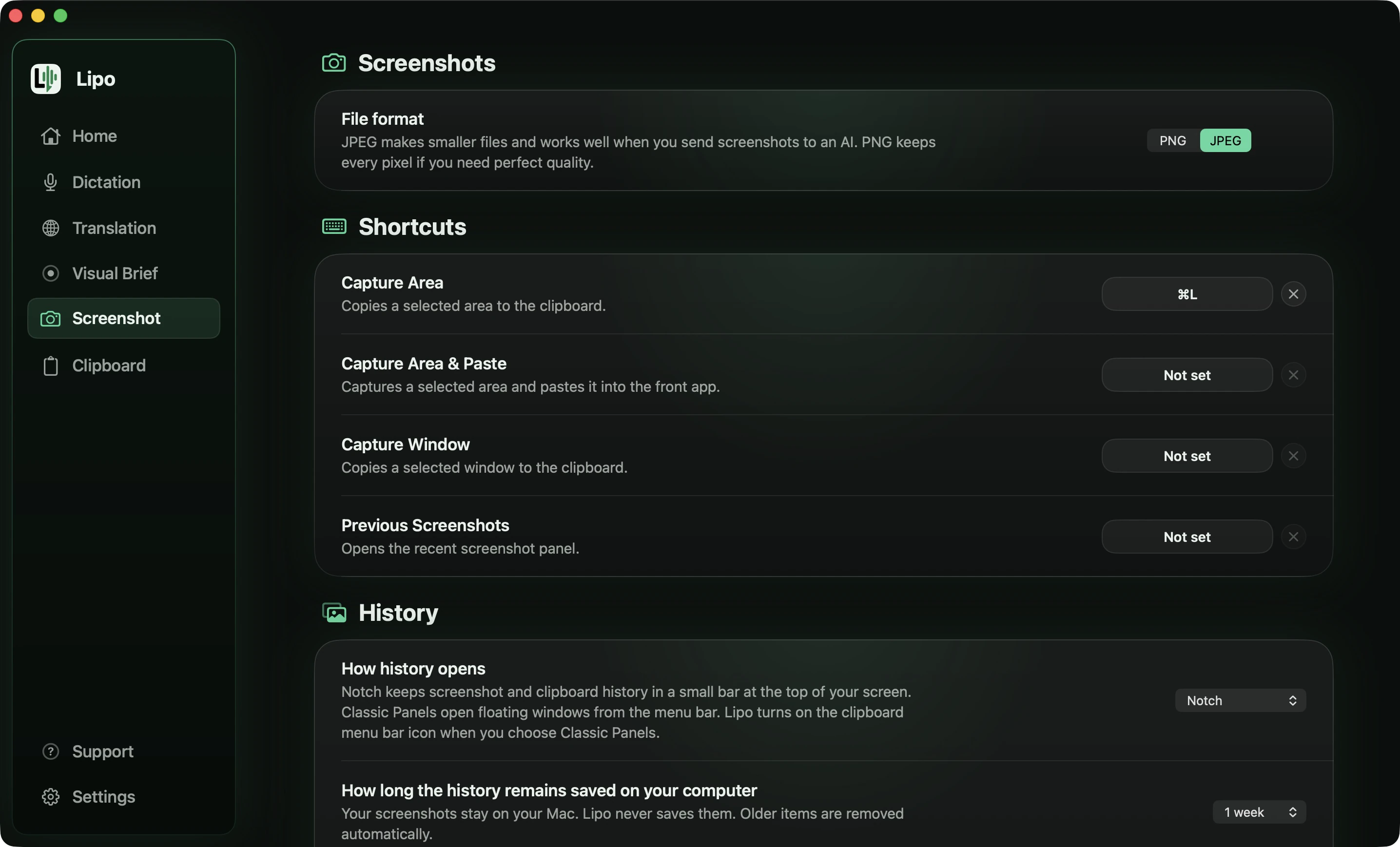
The camera button takes a screenshot. Click it, drag to select an area, then keep speaking. When you release the hotkey, Lipo pastes your text and attaches the screenshot to the same message. The highlighter button lets you mark the part of the screen you are talking about, and the marked-up capture is attached in the same way.
This turns "look at this error" into a message that contains the error. It is useful in Slack, in a bug report, and in a chat with an AI tool.
For something bigger there is Visual Brief. AI coding tools such as Claude Code and Cursor take text and images, but not a screen recording. Visual Brief records your screen for up to five minutes while you describe the problem in your own language. Lipo transcribes what you said, analyzes the recording, writes a structured prompt, and pastes it into the app you are in. Recordings stay on your Mac and are removed after seven days. The Visual Brief docs explain the setup.
Mac dictation vs Lipo: which one should you use?
| Apple's dictation | Lipo | |
|---|---|---|
| Price | Free with macOS | Paid, with a free trial |
| Languages | About 34 | 50+ |
| Bengali, Urdu, Tamil, Telugu, Persian, Tagalog | Not supported | Supported |
| Automatic punctuation | In some languages | In all its languages |
| Removes filler words and false starts | No | Yes |
| Two languages in one sentence | No | Yes |
| Speak one language, paste another | No | Yes, any pair |
| Tone: casual, formal, coding | No | Yes |
| Your own spellings for names and terms | Contacts names only | Custom dictionary, works in every language |
| Screenshot attached to dictated text | No | Yes |
| Video prompt for AI tools | No | Yes |
| Works offline | Yes, for many languages | No |
Two rows deserve reading slowly. The first is the language row, where a count hides the thing that matters. What counts is not whose list is longer but whether your language is on it: 28 languages here are in Lipo and not in Apple's dictation at all, and for a Bengali, Urdu or Tamil speaker that is the whole decision.
The second is the last row, and it is the honest cost of everything above. Apple's dictation runs on your computer for many languages, so it works with no internet and nothing leaves your Mac. Lipo sends your audio to a server to transcribe and clean it up, so it needs a connection.
What Lipo does not do is keep it. Your dictation history, your transcripts, your screenshots and your Visual Brief recordings are stored on your Mac, not uploaded to us. The audio sent for processing is not kept as an archive on our side, and none of it is used to train our models. The privacy policy sets out what is sent and what is stored.
If working offline matters to you more than languages or translation, Apple's dictation is the better choice, and it is free.
Lipo needs macOS 15.2 or later, and there is a free trial. Plans are on the pricing page.
Frequently asked questions
How do I turn on dictation on my Mac?
Open the Apple menu, choose System Settings, click Keyboard, and turn on Dictation. Then click into a text box and press your dictation shortcut.
What is the dictation shortcut on Mac?
The microphone key, usually F5, if your keyboard has one. If not, choose a shortcut in Keyboard settings. Common options are pressing Control twice or pressing the Function key twice.
Does Mac dictation add punctuation automatically?
In some languages. Apple lists automatic punctuation for English, Spanish, French, German, Italian, Dutch, Japanese, Korean, Thai, Cantonese and Mandarin Chinese. It is not listed for Arabic, Hindi, Portuguese, Russian, Turkish or many others, and in those you say each mark out loud.
How do I change the dictation language on my Mac?
Open System Settings, click Keyboard, then click Edit next to Languages in the Dictation section. Tick the languages you want. Once more than one is on, you can switch between them with the Globe key while dictation is running.
Can Mac dictation understand two languages at once?
No. It listens in the one language that is selected. If you mix languages in a sentence, the words from the other language are written as similar-sounding words in the selected language.
Does Mac dictation support Bengali, Urdu or Tamil?
No. None of the three are in Apple's dictation language list. Lipo supports all three, along with Telugu, Marathi, Gujarati, Punjabi, Kannada and Malayalam.
Can Mac dictation translate what I say?
No. Apple's dictation writes in the language you spoke. Lipo can paste in a different language, in any pair of its languages.
Does Mac dictation work without internet?
On newer Macs it runs on your computer for many languages once the speech model is downloaded, so it works offline. Some languages use Apple's servers. Keyboard settings tells you which applies to your language.
How long can I dictate on a Mac?
There is no time limit. Dictation stops after about 30 seconds of silence, or when you press the shortcut again.
Why does Mac dictation spell names wrong?
Apple's dictation uses the names in your Contacts to help it recognize the names you say, so a name that is not in Contacts is more likely to be written the way it sounds. You cannot add your own spellings to Apple's dictation. Apps with a custom dictionary let you save the spelling you want; ours is described in the dictionary docs.
Keep reading
From the docs: Dictation · Dictation modes