 Lipo
LipoJapanese voice typing on Mac: kanji, kana and keigo
The same sounds can be written several ways, and the wrong level of politeness reads as rude. Here is what Japanese voice typing has to get right before it saves you any time at all.
Yes. Apple's built-in dictation (音声入力) supports Japanese on a Mac for free, and it adds 。and 、for you. It has limits. It does not remove えっと or false starts (words you begin, stop, and say again), it does not always choose the right kanji for words that sound the same, and it writes the register you spoke, so a casual sentence stays casual in a client email. Lipo is our app for those gaps. You hold a key, speak Japanese the way you say it to a colleague, and Lipo pastes clean Japanese where your cursor is. Formal mode gives you keigo (polite business Japanese), and translation gives you English instead. Japanese voice typing is also called Japanese voice dictation, and this guide uses both names.
If you would rather read about Lipo in Japanese, see Lipoの日本語ページ.
How do you turn on Japanese dictation (音声入力) on a Mac?
Apple's dictation is free, and setting it up takes about a minute.
- Open the Apple menu, choose System Settings, and click Keyboard.
- Turn on Dictation.
- Click Edit next to Languages and tick Japanese.
- Click into any text box, press the dictation shortcut, and speak.
The shortcut is the microphone key, if your keyboard has one. If it does not, open the Shortcut menu in the same Dictation settings and choose one, such as pressing the Control key twice. Choose a shortcut you will not press by accident.
Japanese is one of the languages where Apple adds 。and 、automatically, and you can turn that off in the same settings. Apple processes Japanese dictation on your Mac, after a one-time download of the language. If 音声入力 stops working, our Mac dictation guide lists the usual causes and fixes.
Why is Japanese voice typing hard?
Start with kana-to-kanji conversion. Kana are the phonetic characters (hiragana and katakana), and kanji are the Chinese characters. When you type Japanese, you type kana, and the IME (the input software) offers kanji candidates. For はし it offers 橋 (bridge), 箸 (chopsticks) or 端 (edge), and you choose one. When you speak, nobody chooses, so the app must decide from context. Words like きかん (期間, 機関, 器官, 帰還) and こうせい (構成, 校正, 厚生, 公正) appear in everyday business email, and a wrong choice changes the meaning.
Segmentation means finding where one word ends and the next begins. Japanese has no spaces, so the model must find the word boundaries before it can convert anything. 「きょうはいしゃにいく」 is either 今日は医者に行く (going to the doctor today) or 今日歯医者に行く (going to the dentist today). Only context separates them.
Register (the level of formality) is the biggest problem for work. Spoken Japanese to a friend uses だ・である or plain form. Written Japanese to a client uses です・ます at minimum, and often full keigo, with 尊敬語 for the reader's actions and 謙譲語 for your own. 「明日行く」 becomes 「明日伺います」. Nobody speaks that way into a microphone, so an app that writes exactly what you said gives you text you cannot send.
Loanwords (words taken from another language) go in katakana: ミーティング, クライアント, デッドライン. When a model hears "client" said with a Japanese accent, it may write the word in Latin letters or hear a Japanese word instead. Product names are the opposite problem, because Slack, Figma and GitHub stay in Latin letters in most Japanese writing. So the app must know which English words to convert and which to leave alone.
Punctuation is the last problem. Japanese uses full-width 。and 、, and quotes are 「」, not "". Apple's dictation inserts 。and 、for you in Japanese. The quote marks are not part of that, so you still add those yourself.
How to voice type in Japanese with Lipo
Your IME stays exactly as it is. Lipo is a separate app (macOS 15.2 or later): set its dictation language to Japanese under Dictation, then Language, and allow the microphone and accessibility permissions it asks for. The accessibility permission is what lets it paste into other apps.
You talk while holding the right Option key, and nothing appears until you let go. Then Lipo writes down what you said, removes えっと and the false starts, chooses the kanji, adds 。and 、, and pastes the result into the app you were using. There is no conversion step for you to confirm.
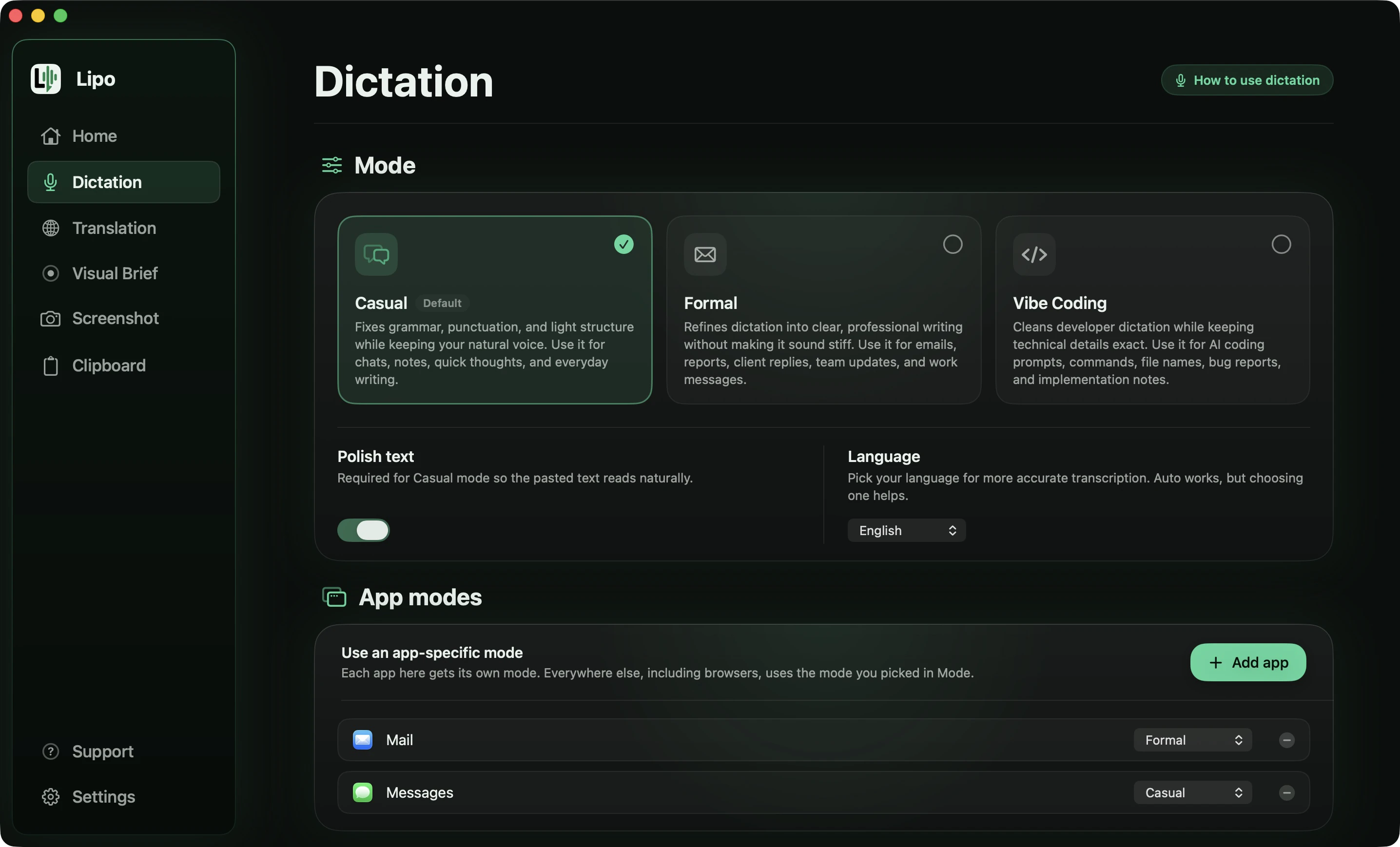
Here is a release update spoken to a colleague, with six of the problems that real speech always has.
You say
「えっと、来週の水曜、あ、木曜でしたっけ、木曜のリリースなんですけど、その、テストが、テストがまだ二件残ってて。あと、在庫が三千個って言ってましたけど、実際は二千八百です。それいがいは問題ないです。資料は今日中に共有しますんで、確認お願いします。」
Lipo pastes
木曜のリリースですが、テストがまだ2件残っています。あと、在庫は3,000個と言っていましたが、実際は2,800個です。それ以外は問題ないです。資料は今日中に共有しますので、確認お願いします。
Six things happened there:
- The correction was kept. You said Wednesday, corrected yourself, and said Thursday. The message says Thursday.
- The stutter is gone. 「テストが、テストが」 is written once.
- Filler is gone. 「えっと」 and 「その」 do not appear.
- Numbers are written as digits. 「二件」 became 2件, 「三千個」 became 3,000個 and 「二千八百」 became 2,800個. Lipo never changes the value of a number, only the way it is written.
- The right kanji was chosen from the meaning. 「いがい」 can be 以外 or 意外. The sentence means "apart from that", so Lipo wrote 以外. It is a meaning problem, not a sound problem, so only an app that reads the whole sentence can fix it.
- A half sentence was finished. 「残ってて」 became 「残っています」, matching the です・ます you were already using. Casual mode keeps your register, it does not raise it. The full-width 。and 、are where a Japanese writer would put them, and リリース and テスト stay in katakana.
Long emails are easier in Toggle mode, where one press starts recording and a second press stops it.
Does Lipo write keigo?
Formal mode does, and Casual mode keeps whatever register you spoke in. In Casual mode, Lipo fixes kanji choices and punctuation, removes the filler words, and leaves your register alone. In Formal mode, Lipo rewrites the text in a professional style, which for Japanese means business keigo. You say 「明日行くね」, and Lipo writes 明日伺います。 You say 「これ見といて」, and Lipo writes こちらをご確認いただけますでしょうか。 You say 「ごめん、遅れる」, and Lipo writes 申し訳ございません、少々遅れます。
Pin Formal to Mail and Casual to LINE or Slack, and the same key gives you the right register in each app.
There are some limits. Formal mode writes standard business keigo, so read a 詫び状 (formal letter of apology) for a major client before you send it. Kanji choice works well on ordinary vocabulary and gets weaker on specialist terms. In a printing company 「こうせい」 means 校正, and in a government office it means 厚生. The dictionary exists for those cases. Lipo keeps product names (Slack, Figma) in Latin letters, which matches most Japanese business writing. If your company writes スラック, add that spelling to the dictionary. If a sentence comes out wrong, tell us.
Can you speak Japanese and get English text?
Many Japanese speakers write English to overseas teams, a parent company or a supplier. You think of the sentence in Japanese, translate it in your head, and then type English. Lipo removes the middle step.
Yes. In the Translation tab, set "Lipo pastes" to English. Many people keep one key for Japanese and add a second key for English, so a message to the Tokyo team and one to a supplier abroad need no settings change in between. Lipo removes the えっと and the false starts before it translates, so they never reach the English.
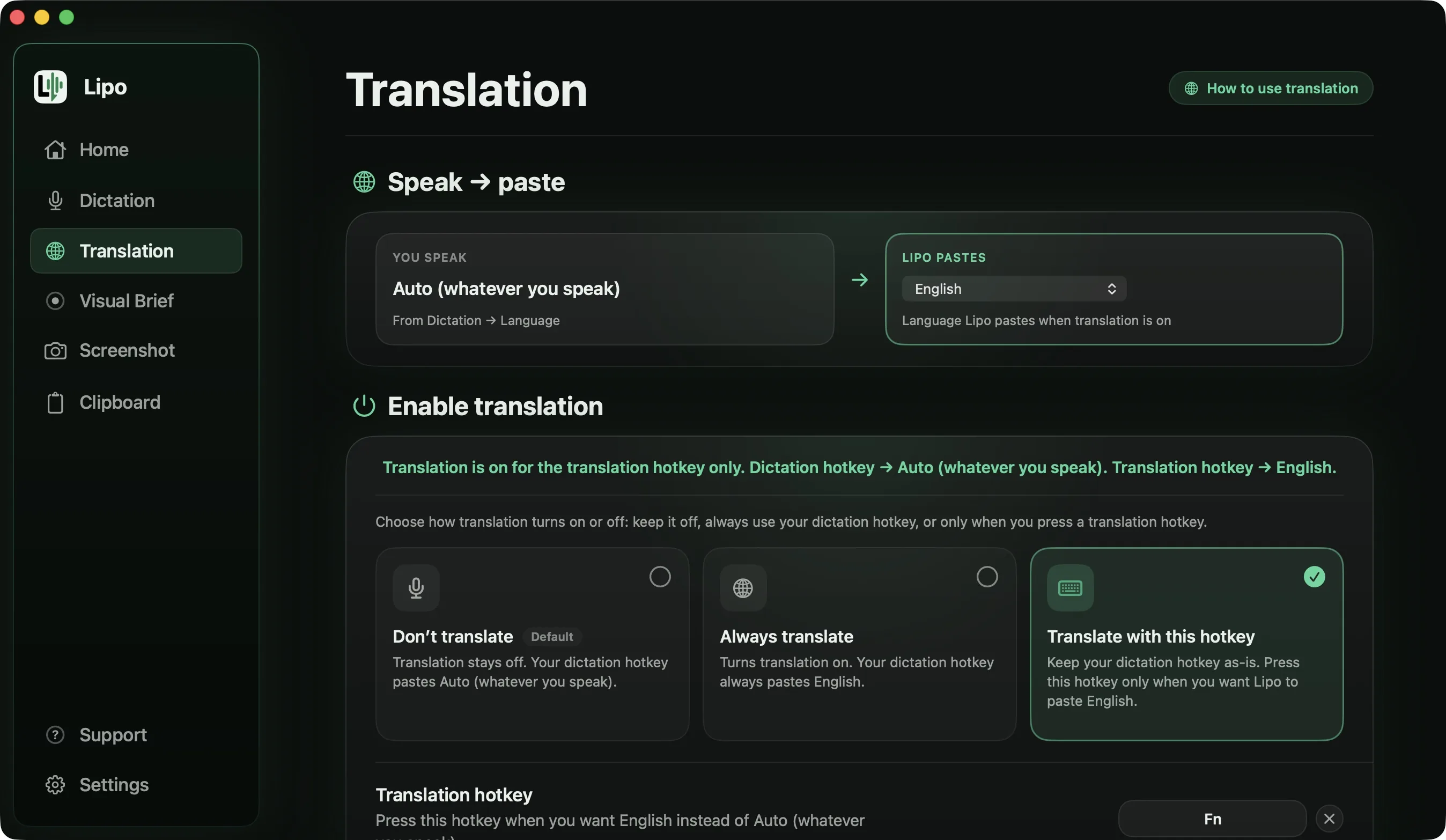
In Japanese you know exactly how much to soften a request. In English that care is often lost, because grammar takes all your attention. When you speak Japanese and Lipo translates it, the meaning and the tone stay.
Here is a whole email, spoken the way people actually speak one.
You say (Japanese, Formal mode, output language set to English)
「サラさん、いつもお世話になっております。あの、納品の件なんですけど、その、来週の月曜はちょっと厳しくて、水曜まで、水曜までいただけないでしょうか。代わりに、先に仕様書だけお送りするか、テスト環境を先に開けるか、どちらでも対応できます。ご都合いかがでしょうか。」
Lipo pastes
Hi Sarah,
Thank you as always. On the delivery: next Monday will be difficult for us. Could we have until Wednesday? In the meantime we can either send you the specification first or open the test environment early, whichever suits you. Please let me know which you would prefer.
"Hi Sarah" is there because you addressed her, and the email ends with your last question. Lipo does not add a subject line or a "Best regards" that you never said.
「いつもお世話になっております」 has no English equivalent. It became a natural opening line rather than a word-for-word translation, and 「ちょっと厳しくて」 became "will be difficult" rather than "a little severe". The two options stayed inside the sentence: Lipo turns three or more parallel items into a list, but leaves two of them in the prose, which is what a person would write. 「水曜まで、水曜まで」 was written once, and 「あの」 and 「その」 are gone.
English to Japanese works too. Set "Lipo pastes" to Japanese, speak English, choose Formal mode, and Lipo pastes Japanese with keigo. Ask a native colleague to read a delicate message, but a routine 「資料をお送りします」 email is fine. The translation docs list every setting, and translation is included in every plan.
Surnames are the classic failure. 斎藤, 斉藤 and 齋藤 sound identical, so add the one you use to the dictionary. Lipo then writes it your way in Japanese and keeps it intact in English. Industry terms work the same way: add 校正 if your team never means 構成.
How do other dictation apps handle Japanese?
Japanese is supported almost everywhere, at different levels. Wispr Flow lists it in its second group, after the seven languages it says match English. Aqua Voice includes it in its list of 49. Willow Voice claims more than 100 languages without naming them, superwhisper depends on the model you install, and Apple's 音声入力 is free and adds 。and 、on its own.
The test sentence is 「Figmaのファイル、Slackで送っといて」, two product names inside Japanese. Wispr Flow's help centre says one recording is written in one language, so those names are unpredictable there. Lipo hears both languages, keeps the names in Latin letters and puts loanwords in katakana. For translation, Lipo covers any two of its 50+ languages, superwhisper only translates into English, and the rest do not translate. The comparison of dictation apps for non-English languages has the details side by side.
Tips for better Japanese results
橋 or 箸 is decided by the words around it, so speak in sentences rather than single words.
Pause at the end of a sentence instead of saying 「まる」. Lipo adds the 。.
Saying 「月曜、じゃなくて火曜」 is fine. Lipo keeps 火曜 and drops the rest.
With many English terms in your speech, set the language to Japanese instead of automatic detection.
Pitch accent is the first thing wireless earbuds lose, so use the Mac's microphone or a wired headset.
Frequently asked questions
Can I voice type in Japanese on a Mac?
Yes. Apple's built-in dictation (音声入力) supports Japanese for free, including automatic 。and 、. Apps like Lipo add filler removal, better kanji choice from context, keigo through Formal mode, and translation.
How do I turn on 音声入力 on a Mac?
In System Settings, open Keyboard and switch on Dictation. Click Edit next to Languages and tick Japanese. Then press the dictation shortcut in any text box.
What is the shortcut for Japanese dictation on a Mac?
The microphone key, if your keyboard has one. If it does not, choose a shortcut in System Settings, Keyboard, Dictation, for example pressing the Control key twice.
How does Lipo choose the right kanji?
Lipo chooses from the meaning of the whole sentence, the same way a reader does. For specialist terms (校正 or 構成 in your industry), add the word to the dictionary.
Can Lipo write keigo?
Yes. Formal mode rewrites casual speech into business Japanese with です・ます and the matching 尊敬語 and 謙譲語. Casual mode keeps whatever register you spoke in.
Does it use full-width punctuation?
Yes. Lipo writes 。and 、and uses 「」 for quotes, the way printed Japanese does. Product names like Slack and Figma stay in Latin letters unless you add a katakana spelling to the dictionary.
How are English loanwords written?
Lipo writes them in katakana (ミーティング, クライアント, デッドライン), the way they appear in Japanese print. Product and company names stay in Latin letters.
Can I speak Japanese and get English text, or the reverse?
Both. Set "Lipo pastes" to English or Japanese in the Translation tab. Lipo transcribes, cleans up, translates, and then pastes. English to Japanese in Formal mode produces keigo. Translation is included in every plan.
Keep reading
From the docs: Dictation modes · Your Dictionary